Also called: checklist, check list.Checkboxes provide a set of options for multiple responses.
GitHub
Figma
Checkboxes component preview
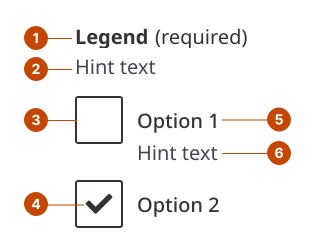
Checkboxes anatomy
The legend for checkboxes acts as a heading to identify the grouped checkboxes. Legend text is left aligned and in sentence case where only the initial letter is capitalized. (Only applies when there are multiple options to choose from.)
The hint text for checkboxes gives specific requirements for filling out the checkboxes successfully. (Only applies when there are multiple options to choose from.)
The checkbox lets people choose or clear an option.
The checkmark is a visual cue that indicates an option is selected.
The option label names or describes the option.
The option hint text gives additional information about the option.
Design and accessibility for checkboxes
Make selections clear
Limit the number of options to 7.
Limit text for each option to a few words or a short phrase. Include hint text if more context is needed.
Order options in a logical way. This could mean alphabetically or from most to least common.
Make instructions clear
Avoid assuming a person will know how to use a checkbox.
Use the hint text to specify they can make multiple selections. For example, “Select all that apply”.
Avoid pre-selecting a checkbox. This makes it more likely that users will miss a question and submit the wrong answer.
Hide the legend or labels only when the purpose is clear
Visually hide the legend or labels only when the purpose of the checkboxes is clearly communicated by surrounding context, making the label visually redundant, such as in:
tables or other space-constrained layouts
settings and configurations
Always provide a legend and labels to support assistive technologies.
Omit hint text if you hide the legend, as it can lack context and be distracting or confusing.
Help us improve Have questions or a request? Give feedback on our contact form. Something's wrong? Raise it through GitHub with an account. You'll have access to the team's direct responses, progress made on your issue, and issues raised by others. Give feedback Report an issue on GitHub 2026-02-12