Also called: text block, copy, caption, body text, paragraph.Text is a styled and formatted paragraph that displays written content in an accessible way.
GitHub
Figma
Text component preview
Text anatomy
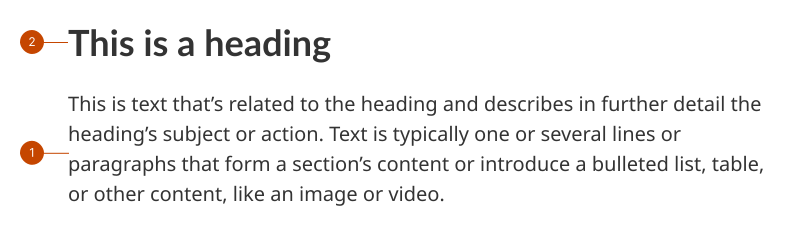
Text is non-heading content. Its subject matter is related to the idea outlined in its corresponding heading.
Heading is a prominent line of text that introduces the paragraph or other body content that immediately follows it. The visual prominence of the heading decreases based on its level in the hierarchical order.
Design and accessibility for text
Write content that’s scannable
Structure content to place the most important information for the task first.
Keep content brief and task-oriented. Our need to tell does not equal a reader’s need to know.
Remove unnecessary details and explanations. Include only the information a person needs.
Use short sentences that communicate a single idea. Be clear who or what is doing the action in each sentence.
Avoid frontloading content that could instead be placed where a person needs it. Rather than explain a process, make the process easier to follow and understand.
Tip: Think about whether the message could be interpreted another way.
Use a human tone
Talk the way the people using your product talk. Learn about them and their language by reading their requests or issues and by testing your messages with them in user research.
Use plain, conversational language, like the tone of voice you’d use if you were describing the situation to the person directly.
As much as possible, replace any jargon or technical terminology, like invalid code, unrecognized field, and mandatory with plainer terms. If they need to be used, give a short definition following the use of the term.
Use sentence case (only the initial letter is capitalized) and avoid caps and exclamation marks.
Tip: To adopt a more human tone, think about explaining aloud to someone. How does it sound when you speak the content in conversation?
Choose regular or small text
Set the text size based on the role of the content and product context.
Use regular text for most non-heading content. Regular text uses the default font size.
Only use small text for supporting information like captions or footnotes.
Use text styling sparingly
Only use underline for links.
Use bold text rather than italics to emphasize key points, or to highlight terms within content.
Limit your use of bold text to avoid compromising readability and accessibility.
Avoid using bold text as a heading. Headings are the accessible component for identifying content sections.
Avoid italicizing large blocks of text, entire paragraphs, or lengthy content. Italics are often difficult to read for users with visual impairments or cognitive disabilities.
Only use italics for:
Legal reference, like the Accessible Canada Act.
Words in other languages, including Latin.
Titles of publications, works of art, and mathematical and scientific material.
Use monospace text for code, commands, file names, and other technical content that should be read or copied exactly.
Help us improve Have questions or a request? Give feedback on our contact form. Something's wrong? Raise it through GitHub with an account. You'll have access to the team's direct responses, progress made on your issue, and issues raised by others. Give feedback Report an issue on GitHub 2026-06-18