Also called: radio button, radio.Radios provide a set of options for a single response.
GitHub
Figma
Radios component preview
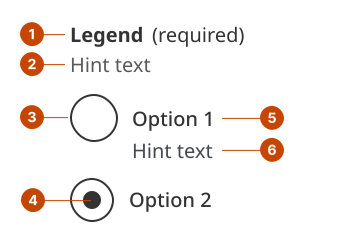
Radio group anatomy - with fieldset
The legend for radios acts as a heading to identify the grouped radios. Legend text is left-aligned and in sentence case (only the initial letter is capitalized).
The hint text for radios gives specific requirements for selecting the appropriate response.
The radio button indicates the state of the selection.
The checked button shows what option has been selected.
The option label describes the selection. Label text is in sentence case.
The option hint text gives additional information about the selection.
Design and accessibility for radios
Make selections clear
Limit the number of options to 7.
Limit text for each option to a few words or a short phrase. Include hint text if more context is needed.
Order options in a logical way. This could mean alphabetically or from most to least common.
When possible, include a “None of the above” option to avoid forcing an incorrect selection. A selection can’t be unselected unless another option is selected.
Make instructions clear
Don’t assume a person will know they can only select one answer.
Use the hint text to specify they can only make one selection. For example, “Select the response that best applies”.
Avoid pre-selecting a radio option. This makes it more likely that a person will miss a question and submit the wrong answer.
Help us improve Have questions or a request? Give feedback on our contact form. Something's wrong? Raise it through GitHub with an account. You'll have access to the team's direct responses, progress made on your issue, and issues raised by others. Give feedback Report an issue on GitHub 2025-06-04