Also called: page index, page navigation.Pagination is a division of content into multiple linked pages.
GitHub
Figma
Pagination component preview
Pagination anatomy
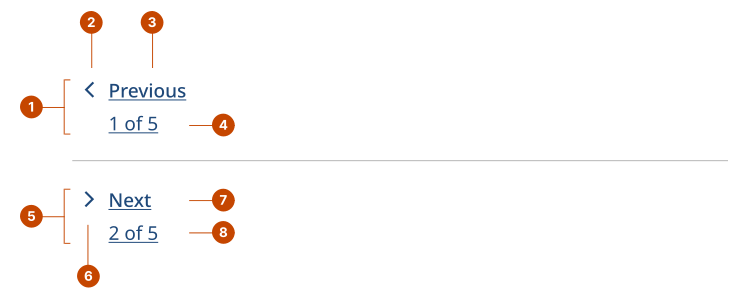
Simple pagination anatomy
The previous link navigates to the previous page in the flow when selected.
The previous chevron is a visual aid to indicate navigating backward, to previous pages in the page flow.
The previous text is the text that accompanies the previous chevron and indicates that the user would be navigating to the previous page in the flow.
The previous label provides context about the page the user will navigate to next.
The next link navigates to the next page in the flow when selected.
The next chevron is a visual aid to signal forward navigation in the flow.
The next text is the text that accompanies the next chevron and indicates that the user would be navigating to the next page in the flow.
The next label provides context about the page the user will navigate back to.
List-styled pagination anatomy
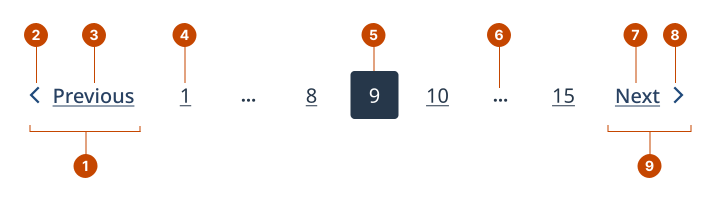
Large screens
The previous link navigates to the previous page in the flow when selected.
The previous chevron is a visual aid to indicate navigating backward, to previous pages in the page flow.
The previous text is the text that accompanies the previous chevron and indicates that the user would be navigating to the previous page in the flow.
A page link navigates to it’s corresponding page in the flow.
The current page indicates the page the user is currently on.
An ellipsis replaces any pages that are being skipped.
The next text is the text that accompanies the next chevron and indicates that the user would be navigating to the next page in the flow.
The next chevron is a visual aid indicating that you would be navigating forwards in the page flow.
The next link navigates to the next page in the flow when selected.
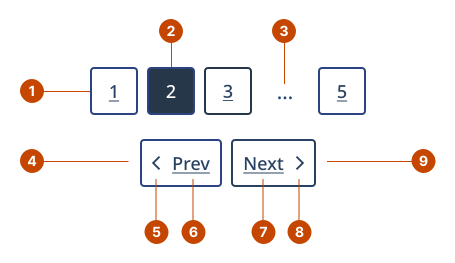
Small screens
A page link navigates to it’s corresponding page in the flow.
The current page indicates the page the user is currently on.
An ellipsis replaces any pages that are being skipped.
The previous link navigates to the previous page in the flow when selected.
The previous chevron is a visual aid to indicate navigating backward, to previous pages in the page flow.
The previous text is the text that accompanies the previous chevron and indicates that the user would be navigating to the previous page in the flow.
The next text is the text that accompanies the next chevron and indicates that theuser would be navigating to the next page in the flow.
The next chevron is a visual aid indicating that you would be navigating forwards in the page flow.
The next link navigates to the next page in the flow when selected.
Design and accessibility for pagination
Make pagination content findable
Put the most important information on the first few pages so there is a lower chance of it being missed.
Place the pagination component immediately under the page content, aligned to the left.
Display navigation links in a way that supports visual scanning:
In a single row without wrapping in list-styled pagination.
Vertically stacked to support users of screen magnification in simple pagination.
Help people understand where they are
In simple pagination, use a label under the “Previous” and “Next” text to let the user know where they are in the flow. Include the page title or the page number and total number of pages to provide context on the adjacent pages.
Avoid showing the “Previous” link on the first page or the “Next” link on the last page.
Show the relevant number of pages
In list-styled pagination, show enough page links to fill the horizontal space. Always show:
The current page
The first and last pages
The pages immediately before and after the current page
On larger screens, show additional pages before and after the current page when space allows. Help us improve Have questions or a request? Give feedback on our contact form. Something's wrong? Raise it through GitHub with an account. You'll have access to the team's direct responses, progress made on your issue, and issues raised by others. Give feedback Report an issue on GitHub 2026-03-17