Also called: contextual alert.The notice is a short, prominent message that’s part of the page content.
GitHub
Figma
Notice component preview
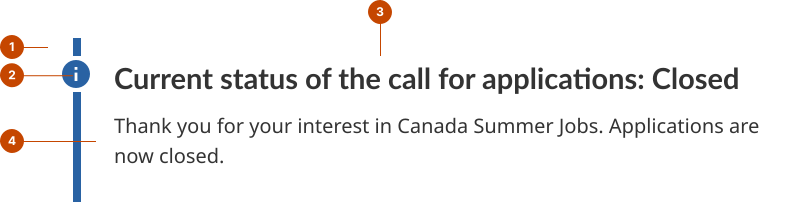
Notice anatomy
Guide line indicates visually the notice’s start and end.
Icon indicates the notice role.
Title specifies the notice topic.
Message provides the notice details.
Design and accessibility
Choose the appropriate notice role
Refer to the use case tab for guidelines on when to use each notice role.
Write concise and descriptive headings and messages
Write a meaningful heading that’s short and simple to highlight the goal of the notice.
In the heading, use words like “warning” and “success” that match the meaning conveyed by the icon and colour of the notice role you selected.
Craft the message (below the heading) to be brief and impactful, ideally within three sentences.
Save the details for the main content area of a page. The notice is meant to attract attention and create an information trail for anyone who needs to know more.
Use links to guide people to additional details if necessary
Use links to connect to additional details for a person who wants to read more.
Opt to create a dedicated page for more detailed content and use a short message in a notice to draw interested people to that page.
Avoid long notices. They can be distracting and frustrating.
Use notices sparingly to avoid visual fatigue
Limit the number of notices on a page. People become less receptive to notices and warning messages the more often they encounter them.
Make sure to remove notices once they’ve served their purpose.
Place notices where you’d place a paragraph
Add a notice where you’d add an important paragraph (or section) on the page.
Consider placing the notice at the top of the page or content section to avoid it being overlooked.
Avoid using a notice within a form component, like an input or a checkbox.
Help us improve Have questions or a request? Give feedback on our contact form. Something's wrong? Raise it through GitHub with an account. You'll have access to the team's direct responses, progress made on your issue, and issues raised by others. Give feedback Report an issue on GitHub 2026-02-12