Also called: text input, input field.An input is a space to enter short-form information in response to a question or instruction.
GitHub
Figma
Input component preview
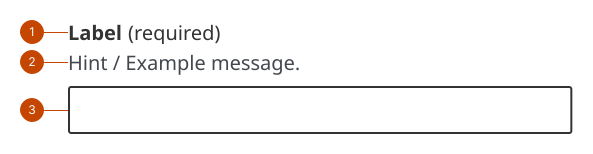
Input anatomy
The input label states the information a person should enter in the field. Label text is left aligned and in sentence case (only the initial letter is capitalized).
The hint text communicates specific requirements for each input to support task success.
The field is the container a person interacts with to provide their response.
Design and accessibility for inputs
Write a short, specific, unique input label
Ask for the information you need using as few words as possible. Phrasing as a question can make a label unnecessarily long and a person may not read the whole thing.
Choose unique labels for each input and textarea within a page, like “Your full name”, “Manager’s name”.
Avoid using technical jargon, like “subject email address” or “account ID”. Instead be specific and personal, like “full name”, “child’s age”.
Avoid using colloquialisms and common verb phrases that are unfamiliar to non-fluent speakers.
Explain any term that may not be clear. For example, “Handle (name you’d like to go by)”.
Hide the label only when the purpose is clear
Visually hide the label only when the purpose of the input is clearly communicated by surrounding context, making the label visually redundant, such as in:
chat or messaging interfaces
search components
tables or other space-constrained layouts
file name inputs in web apps
settings and configurations
Always provide a label to support assistive technologies.
Omit hint text if you hide the label, as it can lack context and be distracting or confusing.
Limit the use of placeholder text
In forms, avoid using placeholder text to replace a label or to convey instructions or information a person needs to remember, as it can create accessibility issues.
Outside of forms, use placeholder text only to reinforce a purpose that is already clear from visible context (for example, in search or conversational interfaces).
Size inputs to fit response type
Use fixed width inputs for content you know has a specific length. For example, 6 characters for a postal code or 10 characters for a phone number.
Opt to use most of the container width when you do not know the character count of the response and use all 75 characters for responses without a fixed length.
Avoid using inputs for responses that may need more than 75 characters.
Support task success with hint text
Add hint text to help a person filling in an input to provide a complete value.
Write hint text to be instructional, brief and specific.
Write error messages for required inputs
Use error messages to address missing and invalid entries.
Write an error messages for all required inputs. If a field is optional, avoid using an error messages.
Avoid blaming the person using the product. Instead, tell them exactly what to do to move forward.
Help us improve Have questions or a request? Give feedback on our contact form. Something's wrong? Raise it through GitHub with an account. You'll have access to the team's direct responses, progress made on your issue, and issues raised by others. Give feedback Report an issue on GitHub 2026-02-24