Also called: symbol, glyph, graphic.An icon is a symbol that visually represents an action or idea.
GitHub
Figma
Icon component preview
Icon anatomy
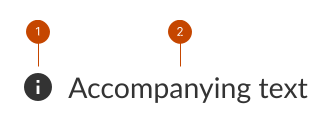
Icon is a symbol that visually represents an object, action, or idea.
Accompanying text is a word or phrase that gives additional context.
Design and accessibility for icon
Use icon intentionally
Use an icon to assist people with site functionality.
Use sparingly since too many icons create unnecessary distractions and reduce their effectiveness.
Use icon with text
Pair an icon with accompanying text to reduce ambiguity.
A universally understood icon can stand alone, like a search icon.
Place an icon before text unless indicating secondary information, like dropdown arrows.
Write a meaningful description
Use unique and specific accompanying text to prevent repetition for screen readers.
Use alt-text when there’s no accompanying text.
Match icon and text size
Match icon size to accompanying text, like using a small icon with small text.
Align the icon so it’s the same height as the accompanying text.
Use our sizing scale to ensure the icon size matches the text size.
Text small
Text
H6
H5
H4
H3
H2
H1
Choose an accessible colour
Use a solid colour that matches your accompanying text.
Check that the colour meets or exceeds WCAG 2.1 AA.
Help us improve Have questions or a request? Give feedback on our contact form. Something's wrong? Raise it through GitHub with an account. You'll have access to the team's direct responses, progress made on your issue, and issues raised by others. Give feedback Report an issue on GitHub 2025-04-15