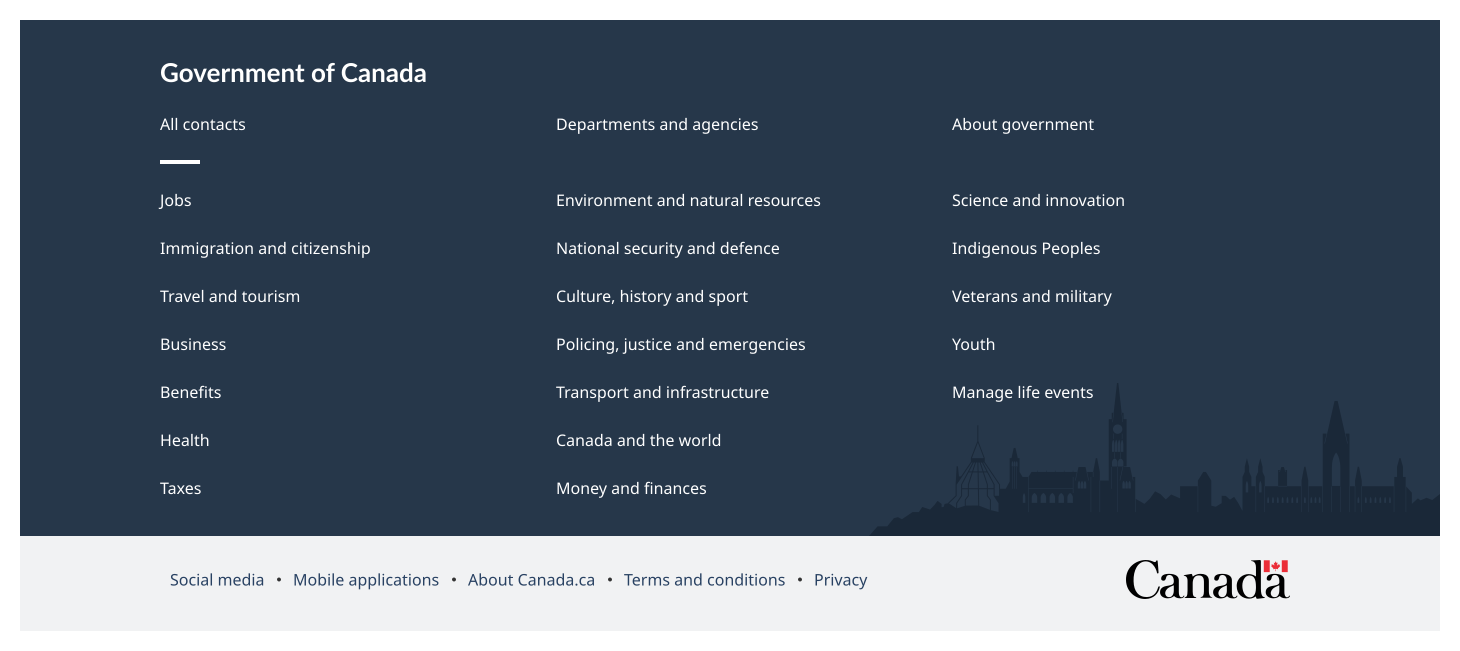
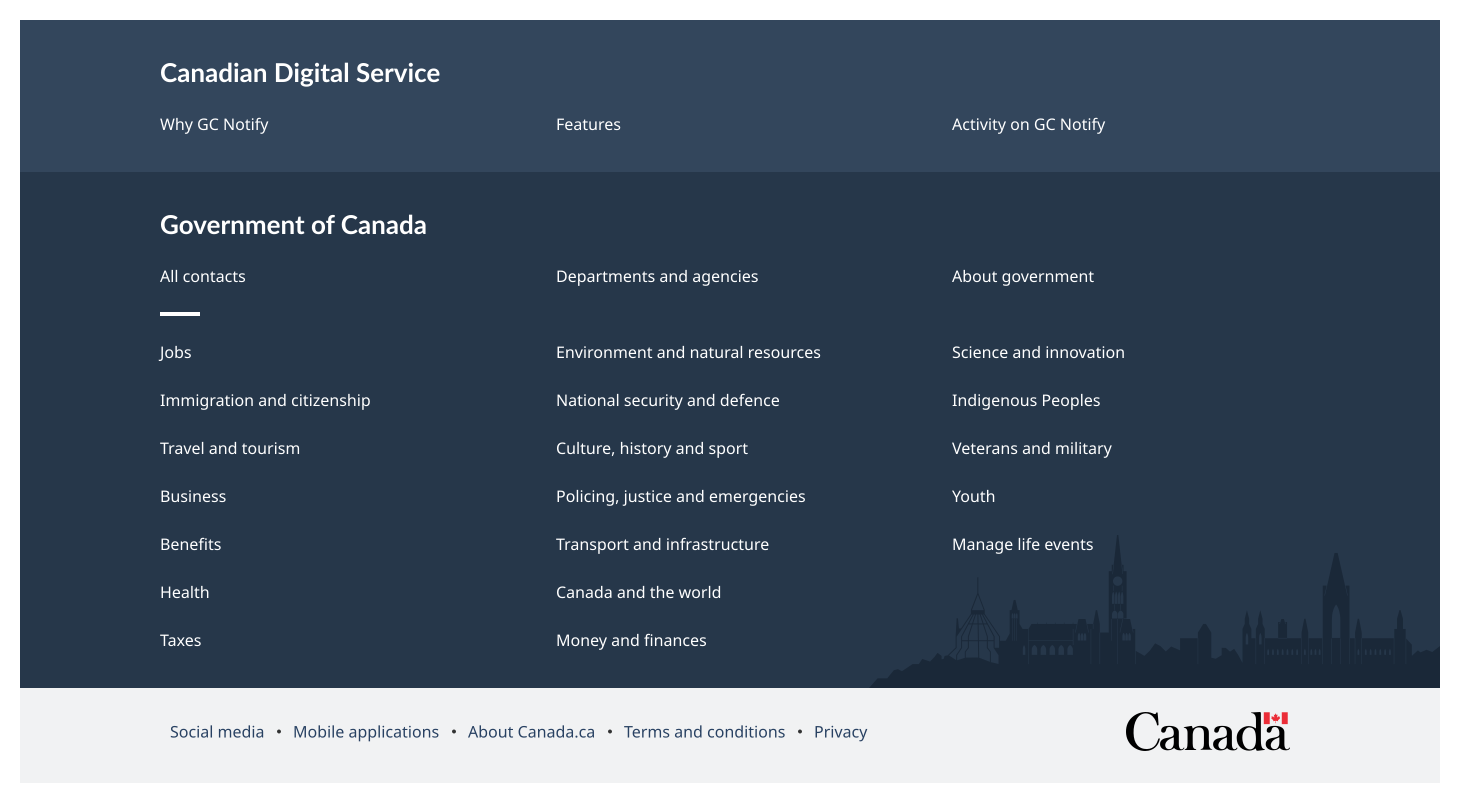
Use the display property to choose one of the two display modes: compact or full. Choose the compact display to include:
The footer links band and the Government of Canada wordmark.
Include the full display if you need to include:
The main band with a large selection of Government of Canada corporate links.
The footer links band and the Government of Canada wordmark.
Opt to include the contextual band to add up three specific links for your site.
Set up the GC footer links band
Always maintain the integrity of the Government of Canada wordmark. Do not modify the wordmark in any way.
Keep the Canada wordmark, privacy link, and terms and conditions link. The other links are only required on standard pages, otherwise you can remove.
Add optional elements
Add content to the contextual band by using both the contextual-heading and contextual-links attributes.
Use the contextual-heading attribute to assign heading text and the navigational landmark label of the contextual band.
Use the contextual-links attribute to set a maximum of three links in the contextual band. Add support links for your product or service, such as contact details for a program.
For the contextual band, set the contextual-links, by passing an object or an object in a string in the following format:
{“1st link label”: “href”“2nd link label”: “href”“3rd link label”: “href”}
For the footer links band, set the sub-links, by passing an object or an object in a string in the following format:
{“1st link label”: “href”“2nd link label”: “href”“3rd link label”: “href”}
Examples
Explore the different ways you can configure the component. Each example shows a working implementation and ready-to-copy code.
These attributes allow you to customize or extend the component’s behaviour and presentation.
contextual-heading
The contextual-heading attribute defines the heading text for the contextual navigation section in the footer. This heading is also used to label the footer’s navigation landmark, supporting clearer structure and accessibility.
<gcds-footer contextual-heading="Canadian Digital Service" contextual-links='{ "Why GC Notify": "#", "Features": "#", "Activity on GC Notify": "#" }'></gcds-footer>
contextual-links
The contextual-links attribute defines the set of links displayed in the footer’s contextual navigation section. It accepts an object where each key represents the link label and each value represents the corresponding URL. Format: { link-label: link-href }.
<gcds-footer contextual-heading="Canadian Digital Service" contextual-links='{ "Why GC Notify": "#", "Features": "#", "Activity on GC Notify": "#" }'></gcds-footer>
display
The display attribute controls which sections of the footer are rendered. By default, it is set to compact, displaying only the sub-footer section.
<gcds-footer></gcds-footer>
When it is set to full, both the main footer and sub-footer sections are displayed.
<gcds-footer display="full"></gcds-footer>
sub-links
The sub-links attribute defines the set of links displayed in the sub-footer section. It accepts an object where each key represents the link label and each value represents the corresponding URL. Format: { link-label: link-href }.
<gcds-footer sub-links='{ "Terms and conditions": "#", "Privacy": "#" }'></gcds-footer>
Code builder Generate an instance of the component you need by selecting its code properties.
Explore by choosing different code values to generate the instance you want.
Get the code and pull it into your environment.
Add any copy you need to the component (like text for a label).
Note: The code builder uses English for all code elements, which follows standard practice. Help us improve Have questions or a request? Give feedback on our contact form. Something's wrong? Raise it through GitHub with an account. You'll have access to the team's direct responses, progress made on your issue, and issues raised by others. Give feedback Report an issue on GitHub 2026-05-20