Also called: error, inline error.An error message is a description of a problem blocking a user goal.
GitHub
Figma
Error message component preview
Error message anatomy
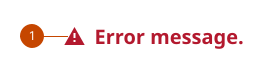
The error message cites the problem in context and includes a call to action to address it.
Error message applied to a form component
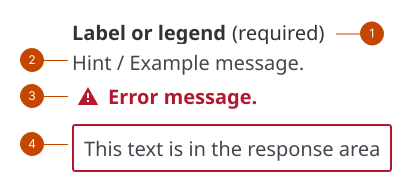
All GC Design System components come with default error handling for required form components. For your own component instances, add the error message component, and include the following:
The required marker shows a response area, a field or selection, needs to be completed. An incomplete response or omission will prompt an error message.
The hint text gives brief, specific instructions about the constraints of the response. It can give an example of an accepted response.
The error message cites the problem in context and includes a call to action to address it.
The response area takes on the appearance of the response format and error message state of the component it’s attached to. For an input or textarea, the box will be highlighted. For radios or checkboxes, the options will be highlighted.
Design and accessibility for error messages
When you interrupt the flow of a person’s action in your product, make the error and recovery obvious to get them back on task and they can regain momentum.
Identify and define the error
Prepare error messages for each response constraint a component has. List out what could go wrong, and then design a short, specific statement describing each need.
Only provide one reason for the error. Tell them the criterion the response does not meet.
Avoid mentioning the user action that led to the problem. For example, “You missed answering a question” places the blame on the user, but “This question needs a response” identifies the problem blamelessly and neutrally.
Get the person back on track with a call to action
Reduce additional friction by keeping the call to action specific and clear.
Provide one or two solutions for fixing the error, not a multi-step process.
Connect the dots for the person using your product. Avoid making them have to puzzle out what to do to correct an error.
State exactly what’s needed to correct the issue and avoid the frustration of a repeat error.
Write a message that’s scanable
Get rid of unnecessary details and include only the information a person needs to act on the problem.
Be concise. If it takes more than a line or two, the ask may be too complex.
Use sentence case and avoid caps and exclamation marks.
Follow a predictable format: what happened, why it happened, and what to do about it.
Tip: Think about whether the message could be interpreted another way.
Use a human tone
Talk the way the people using your product talk. Learn about them and their language by reading their requests or issues and by testing your messages with them in user research.
Use plain, conversational language, like the tone of voice you’d use if you were describing the error to the person directly.
Use and avoid jargon or coding terminology, like invalid code, unrecognized field, mandatory—and device.
Avoid using the word error or any negative words.
Tip: To adopt a more human tone, think about explaining the error aloud to someone. How does it sound when you speak it in conversation? Help us improve Have questions or a request? Give feedback on our contact form. Something's wrong? Raise it through GitHub with an account. You'll have access to the team's direct responses, progress made on your issue, and issues raised by others. Give feedback Report an issue on GitHub 2026-02-24