Also called: tile, content card.A card is a navigational container with structured content on a single topic.
GitHub
Figma
Card component preview
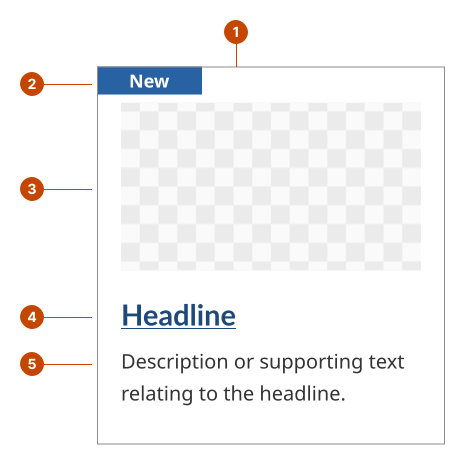
Card anatomy
The container holds all of a card’s elements.
The badge (optional) is a visual indicator to inform users of the card’s status or category. Badge text should be no more than 20 characters.
The image (optional) is a 1:1, 16:9, or 4:3 ratio visual.
The headline is a short attention-grabbing title about the card’s content.
The description (optional) has text that supports the card title. It may include a few lines of summary on the card’s topic or a list of details about the same subject, like a list of event details.
Design and accessibility for cards
Write a scannable card title
Use a meaningful title to inform users of what they’ll find on the card.
Choose a brief description or call-to-action statement for the title.
Choose what information to add to the card
Consider adding an image related to the title to make individual cards more identifiable.
Consider adding a description to provide more information about the card’s topic.
Consider adding a badge to inform users of the status or the category of the card’s content. Common examples of statuses include: “New”, “Updated”, “Coming soon” and “Featured”. Common examples of categories include: “videos”, “articles”, “reports”. The badges are customizable but are limited to 20 characters maximum.
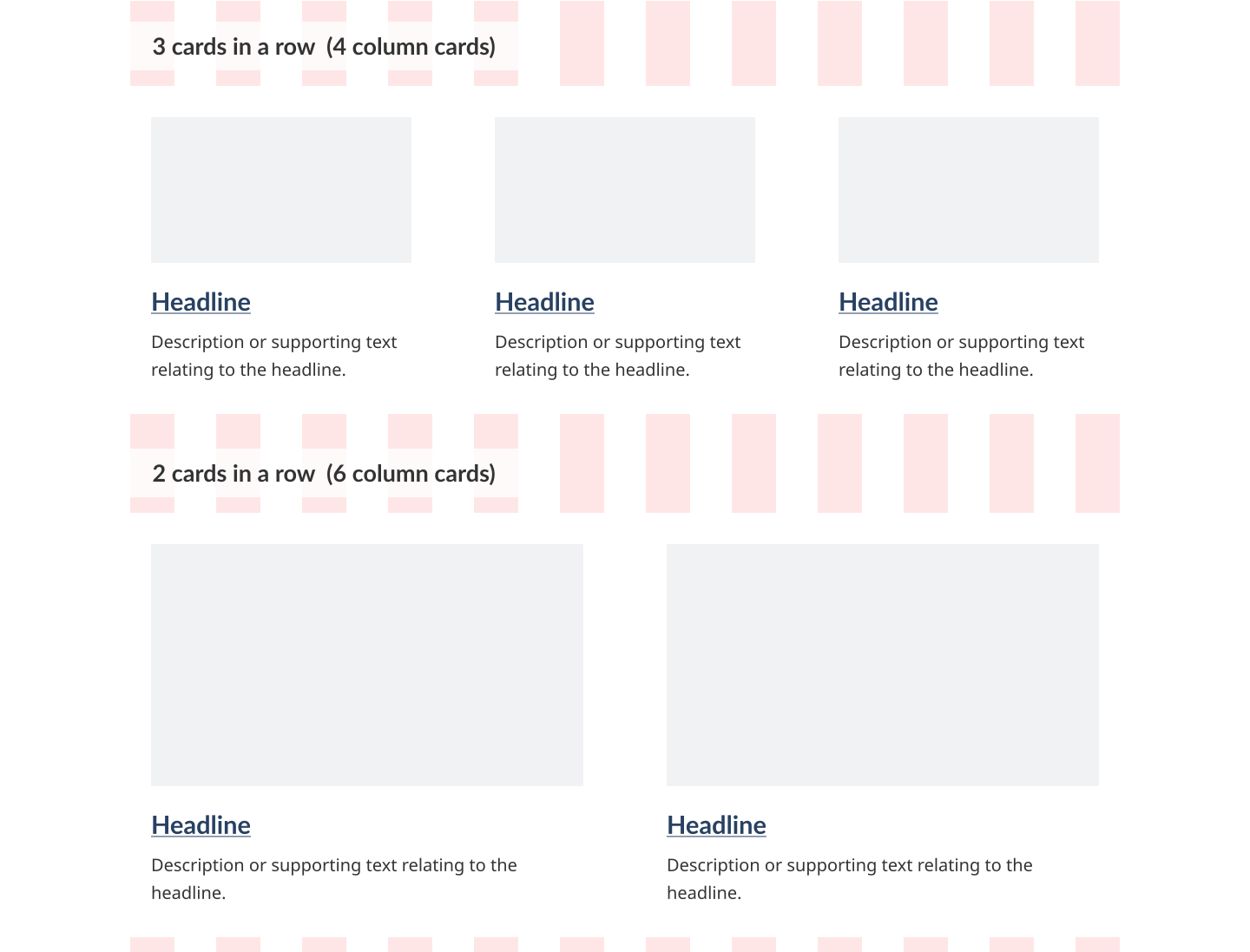
For desktop screens, use either 2 or 3 cards per row.
For mobile screens, use 1 card per row.
Try to include the same properties for each card within a section on a page. For example, if one card has an image, then all cards get an image.
Help us improve Have questions or a request? Give feedback on our contact form. Something's wrong? Raise it through GitHub with an account. You'll have access to the team's direct responses, progress made on your issue, and issues raised by others. Give feedback Report an issue on GitHub 2024-12-11