Input
<gcds-input>
Also called: text input, input field.
An input is a space to enter short-form information in response to a question or instruction.
-
GitHub -
Figma
Input component preview
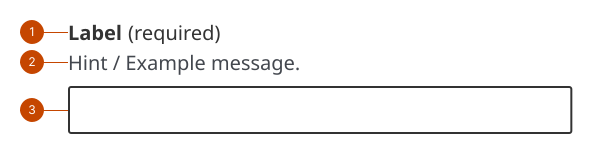
Input anatomy
- The input label states the information a person should enter in the field. Label text is left aligned and in sentence case (only the initial letter is capitalized).
- The hint text communicates specific requirements for each input to support task success.
- The field is the container a person interacts with to provide their response.
Design and accessibility for inputs
Write a short, specific, unique input label
- Ask for the information you need using as few words as possible. Phrasing as a question can make a label unnecessarily long and a person may not read the whole thing.
- Choose unique labels for each input and textarea within a page, like "Your full name", "Manager's name".
- Avoid using technical jargon, like "subject email address" or "account ID". Instead be specific and personal, like "full name", "child's age".
- Avoid using colloquialisms and common verb phrases that are unfamiliar to non-fluent speakers.
- Explain any term that may not be clear. For example, "Handle (name you'd like to go by)".
Hide the label only when the purpose is clear
- Visually hide the label only when the purpose of the input is clearly communicated by surrounding context, making the label visually redundant, such as in:
- chat or messaging interfaces
- search components
- tables or other space-constrained layouts
- file name inputs in web apps
- settings and configurations
- Always provide a label to support assistive technologies.
- Omit hint text if you hide the label, as it can lack context and be distracting or confusing.
Limit the use of placeholder text
- In forms, avoid using placeholder text to replace a label or to convey instructions or information a person needs to remember, as it can create accessibility issues.
- Outside of forms, use placeholder text only to reinforce a purpose that is already clear from visible context (for example, in search or conversational interfaces).
Size inputs to fit response type
- Use fixed width inputs for content you know has a specific length. For example, 6 characters for a postal code or 10 characters for a phone number.
- Opt to use most of the container width when you do not know the character count of the response and use all 75 characters for responses without a fixed length.
- Avoid using inputs for responses that may need more than 75 characters.
Support task success with hint text
- Add hint text to help a person filling in an input to provide a complete value.
- Write hint text to be instructional, brief and specific.
Write error messages for required inputs
- Use error messages to address missing and invalid entries.
- Write an error message for all required inputs. If a field is optional, avoid using an error message.
- Avoid blaming the person using the product. Instead, tell them exactly what to do to move forward.
Help us improve
Have questions or a request? Give feedback on our contact form.
Something's wrong? Raise it through GitHub with an